1. 문제 상황
Rust로 만든 CLI 도구의 v0.1.0 릴리스를 완료했습니다. 하지만 설치 방법이 두 가지뿐이었습니다:
# 방법 1: 소스 빌드 (Rust 툴체인 필요)
cargo install clavis

# 방법 2: GitHub Release에서 수동 다운로드
# → 바이너리 찾기 → 다운로드 → 압축 해제 → PATH에 추가...
사용자 입장에서 cargo install은 Rust가 설치되어 있어야 하고, 수동 다운로드는 번거롭습니다. 이상적인 설치 경험은 이렇습니다:
# macOS / Linux — 한 줄이면 끝
brew install uppinote20/tap/clavis

# 또는 curl 한 줄
curl -sSf https://example.com/install.sh | bash

# Windows — Scoop
scoop install clavis
이 글에서는 6개 플랫폼 크로스 컴파일 → 3개 패키지 매니저 자동 배포까지의 전체 파이프라인 구축 과정을 다룹니다.
2. 전체 아키텍처
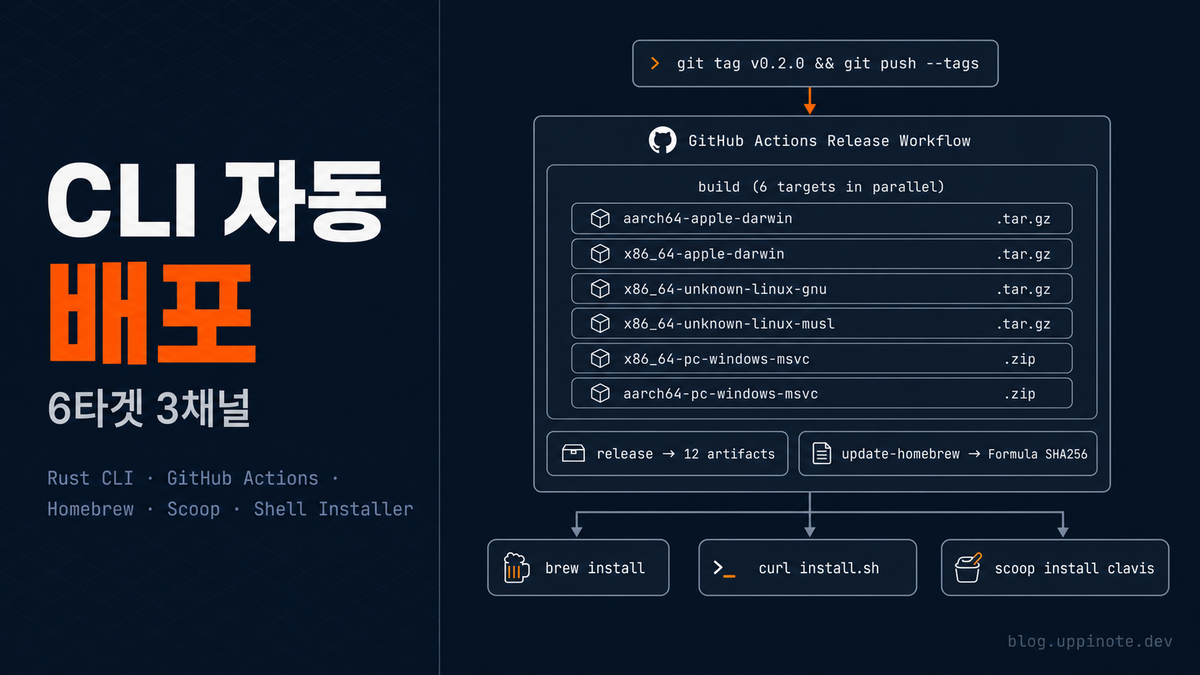
최종 파이프라인은 다음과 같은 구조입니다:
git tag v0.2.0 && git push --tags
        │
        ▼
┌─ GitHub Actions Release Workflow ──────────────────┐
│                                                     │
│  build (6 targets in parallel)                      │
│  ├── aarch64-apple-darwin      (macOS ARM)    .tar.gz│
│  ├── x86_64-apple-darwin       (macOS Intel)  .tar.gz│
│  ├── x86_64-unknown-linux-gnu  (Linux x64)    .tar.gz│
│  ├── x86_64-unknown-linux-musl (Linux static) .tar.gz│
│  ├── x86_64-pc-windows-msvc    (Windows x64)  .zip  │
│  └── aarch64-pc-windows-msvc   (Windows ARM)  .zip  │
│                                                     │
│  release                                            │
│  └── GitHub Release에 12개 아티팩트 업로드           │
│                                                     │
│  update-homebrew                                    │
│  └── homebrew-tap 리포에 formula 자동 업데이트       │
└─────────────────────────────────────────────────────┘
        │
        ▼
  brew install / curl install.sh / scoop install
핵심 설계 원칙은 "태그 하나 push하면 모든 채널에 자동 배포" 입니다.
3. Release Workflow 구축
3.1 Cross-Compile Matrix 설계
GitHub Actions의 matrix strategy를 사용해 6개 타겟을 병렬 빌드합니다. Unix와 Windows의 패키징 형식이 다르기 때문에 archive 필드로 분기하는 것이 핵심입니다.
# .github/workflows/release.yml
name: Release

on:
  push:
    tags: ["v*"]

permissions:
  contents: write

env:
  BINARY_NAME: clavis

jobs:
  build:
    strategy:
      matrix:
        include:
          # macOS
          - target: aarch64-apple-darwin
            os: macos-latest
            archive: tar.gz        # ← Unix는 tar.gz
          - target: x86_64-apple-darwin
            os: macos-latest
            archive: tar.gz

          # Linux
          - target: x86_64-unknown-linux-gnu
            os: ubuntu-latest
            archive: tar.gz
          - target: x86_64-unknown-linux-musl
            os: ubuntu-latest
            archive: tar.gz

          # Windows
          - target: x86_64-pc-windows-msvc
            os: windows-latest
            archive: zip           # ← Windows는 zip
          - target: aarch64-pc-windows-msvc
            os: windows-latest
            archive: zip

    runs-on: ${{ matrix.os }}
archive 필드를 matrix에 포함시킨 이유는 패키징 단계에서 조건 분기를 깔끔하게 하기 위해서입니다. if: contains(matrix.target, 'windows') 같은 문자열 매칭보다 명시적이고 확장하기 쉽습니다.
3.2 플랫폼별 패키징
Unix와 Windows의 패키징은 완전히 다릅니다:
    steps:
      - uses: actions/checkout@v4

      - name: Install Rust
        uses: dtolnay/rust-toolchain@stable
        with:
          targets: ${{ matrix.target }}

      - name: Build
        run: cargo build --release --target ${{ matrix.target }}

      # Unix: tar + shasum
      - name: Package (Unix)
        if: matrix.archive == 'tar.gz'
        run: |
          cd target/${{ matrix.target }}/release
          tar czf ../../../${{ env.BINARY_NAME }}-${{ matrix.target }}.tar.gz \
            ${{ env.BINARY_NAME }}
          cd ../../..
          shasum -a 256 ${{ env.BINARY_NAME }}-${{ matrix.target }}.tar.gz \
            > ${{ env.BINARY_NAME }}-${{ matrix.target }}.tar.gz.sha256

      # Windows: PowerShell Compress-Archive + Get-FileHash
      - name: Package (Windows)
        if: matrix.archive == 'zip'
        shell: pwsh                # ← PowerShell 명시
        run: |
          Compress-Archive `
            -Path "target/${{ matrix.target }}/release/${{ env.BINARY_NAME }}.exe" `
            -DestinationPath "${{ env.BINARY_NAME }}-${{ matrix.target }}.zip"
          $hash = (Get-FileHash "${{ env.BINARY_NAME }}-${{ matrix.target }}.zip" `
            -Algorithm SHA256).Hash.ToLower()
          "$hash  ${{ env.BINARY_NAME }}-${{ matrix.target }}.zip" `
            | Out-File -Encoding ascii `
              "${{ env.BINARY_NAME }}-${{ matrix.target }}.zip.sha256"
여기서 주의할 점이 있습니다:
| 항목 | Unix | Windows |
|---|---|---|
| 아카이브 형식 | .tar.gz |
.zip |
| 체크섬 도구 | shasum -a 256 |
Get-FileHash -Algorithm SHA256 |
| 바이너리명 | clavis |
clavis.exe |
| 셸 | bash (기본) | shell: pwsh 명시 필요 |
Windows의 Get-FileHash는 해시를 대문자로 반환하므로 .ToLower()를 호출해서 Unix의 shasum 출력과 형식을 맞춰야 합니다.
3.3 아티팩트 업로드 통합
matrix의 archive 필드 덕분에 아티팩트 경로를 동적으로 구성할 수 있습니다:
      - name: Upload artifact
        uses: actions/upload-artifact@v4
        with:
          name: ${{ env.BINARY_NAME }}-${{ matrix.target }}
          path: |
            ${{ env.BINARY_NAME }}-${{ matrix.target }}.${{ matrix.archive }}
            ${{ env.BINARY_NAME }}-${{ matrix.target }}.${{ matrix.archive }}.sha256
${{ matrix.archive }}가 tar.gz 또는 zip으로 치환되므로, Unix/Windows 모두 하나의 step으로 처리됩니다.
4. Homebrew Tap 자동화
4.1 Formula 템플릿 설계
Homebrew formula는 플레이스홀더가 포함된 템플릿으로 관리합니다. 릴리스할 때마다 SHA256 해시를 자동으로 치환합니다.
# dist/homebrew/clavis.rb — 템플릿
class Clavis < Formula
  desc "Claude Code system administration tool — TUI & Web"
  homepage "https://github.com/uppinote20/clavis"
  version "{{VERSION}}"              # ← 릴리스 시 치환
  license "MIT"

  on_macos do
    if Hardware::CPU.arm?
      url "https://github.com/uppinote20/clavis/releases/download/v{{VERSION}}/clavis-aarch64-apple-darwin.tar.gz"
      sha256 "{{SHA256_AARCH64_APPLE_DARWIN}}"   # ← 자동 치환
    else
      url "https://github.com/uppinote20/clavis/releases/download/v{{VERSION}}/clavis-x86_64-apple-darwin.tar.gz"
      sha256 "{{SHA256_X86_64_APPLE_DARWIN}}"
    end
  end

  on_linux do
    url "https://github.com/uppinote20/clavis/releases/download/v{{VERSION}}/clavis-x86_64-unknown-linux-gnu.tar.gz"
    sha256 "{{SHA256_X86_64_UNKNOWN_LINUX_GNU}}"
  end

  def install
    bin.install "clavis"              # ← pre-built 바이너리 설치
  end

  test do
    assert_match version.to_s, shell_output("#{bin}/clavis --version")
  end
end
일반적인 Homebrew formula는 소스를 다운로드해서 빌드하지만, 여기서는 pre-built 바이너리를 직접 설치합니다. Rust 컴파일에 수 분이 걸리기 때문에 사용자 경험이 훨씬 좋습니다.
4.2 자동 업데이트 Job — OAuth 토큰 함정
처음에는 직관적으로 git clone → git push 방식을 사용했습니다:
# ❌ 실패하는 접근법
- name: Update Homebrew tap
  env:
    TAP_TOKEN: ${{ secrets.HOMEBREW_TAP_TOKEN }}
  run: |
    git clone "https://x-access-token:${TAP_TOKEN}@github.com/user/homebrew-tap.git" tap
    cp clavis.rb tap/Formula/clavis.rb
    cd tap && git commit -am "update" && git push
이 방식은 GitHub의 gho_* OAuth 토큰에서 반드시 실패합니다:
remote: Invalid username or token.
Password authentication is not supported for Git operations.
fatal: Authentication failed
원인: gh auth login으로 받는 OAuth 토큰(gho_*)은 GitHub API 호출에는 작동하지만, git HTTPS push에는 사용할 수 없습니다. git push에는 PAT(Personal Access Token, ghp_*)이 필요합니다.
해결: GitHub Contents API를 사용하면 OAuth 토큰으로도 동작합니다:
# ✅ GitHub Contents API 사용
- name: Update Homebrew tap
  env:
    GH_TOKEN: ${{ secrets.HOMEBREW_TAP_TOKEN }}
    VERSION: ${{ steps.version.outputs.version }}
  run: |
    CONTENT=$(base64 -w 0 clavis.rb)

    # 기존 파일이 있으면 SHA 필요 (업데이트용)
    EXISTING_SHA=$(gh api \
      repos/uppinote20/homebrew-tap/contents/Formula/clavis.rb \
      --jq '.sha' 2>/dev/null || true)

    if [ -n "$EXISTING_SHA" ]; then
      gh api repos/uppinote20/homebrew-tap/contents/Formula/clavis.rb \
        --method PUT \
        -f "message=clavis ${VERSION}" \
        -f "content=${CONTENT}" \
        -f "sha=${EXISTING_SHA}"       # ← 업데이트 시 현재 SHA 필수
    else
      gh api repos/uppinote20/homebrew-tap/contents/Formula/clavis.rb \
        --method PUT \
        -f "message=clavis ${VERSION}" \
        -f "content=${CONTENT}"        # ← 신규 생성 시 SHA 불필요
    fi
| 방식 | gho_* 호환 |
ghp_* 호환 |
비고 |
|---|---|---|---|
git clone + push |
❌ | ✅ | PAT 필요 |
| GitHub Contents API | ✅ | ✅ | OAuth로도 동작 |
4.3 Pre-release 필터링
alpha, beta 같은 pre-release 태그가 Homebrew formula를 업데이트하면 안 됩니다. if 조건으로 간단히 필터링합니다:
  update-homebrew:
    needs: release
    runs-on: ubuntu-latest
    if: "!contains(github.ref_name, '-')"   # ← v0.2.0-beta.1 등 스킵
SemVer에서 -가 포함된 태그는 pre-release이므로, 이 한 줄로 안정 릴리스만 Homebrew에 반영됩니다.
5. Shell Installer 작성
5.1 기본 구조
curl | bash 패턴의 installer를 만듭니다. 핵심은 플랫폼 감지 → 다운로드 → 체크섬 검증 → 설치입니다.
#!/usr/bin/env bash
set -euo pipefail

REPO="uppinote20/clavis"
BINARY_NAME="clavis"
INSTALL_DIR="${CLAVIS_INSTALL_DIR:-$HOME/.local/bin}"
TMP_DIR=""   # ← 글로벌 선언 (이유는 후술)

cleanup() {
    if [ -n "$TMP_DIR" ] && [ -d "$TMP_DIR" ]; then
        rm -rf "$TMP_DIR"
    fi
}
5.2 플랫폼 자동 감지
uname -s와 uname -m으로 OS와 아키텍처를 감지하고, Rust 타겟 triple로 매핑합니다:
detect_platform() {
    local os arch
    os=$(uname -s)
    arch=$(uname -m)

    case "$os" in
        Darwin)
            case "$arch" in
                arm64)  TARGET="aarch64-apple-darwin" ;;
                x86_64) TARGET="x86_64-apple-darwin" ;;
                *)      err "Unsupported macOS architecture: $arch" ;;
            esac ;;
        Linux)
            case "$arch" in
                x86_64)        TARGET="x86_64-unknown-linux-gnu" ;;
                aarch64|arm64) TARGET="aarch64-unknown-linux-gnu" ;;
                *)             err "Unsupported Linux architecture: $arch" ;;
            esac ;;
        *)
            err "Unsupported OS: $os" ;;
    esac
}
| uname -s | uname -m | Rust Target |
|---|---|---|
| Darwin | arm64 | aarch64-apple-darwin |
| Darwin | x86_64 | x86_64-apple-darwin |
| Linux | x86_64 | x86_64-unknown-linux-gnu |
| Linux | aarch64 | aarch64-unknown-linux-gnu |
5.3 SHA256 체크섬 검증
macOS는 shasum, Linux는 보통 sha256sum이 있으므로 양쪽을 모두 처리합니다:
echo "Verifying checksum..."
cd "$TMP_DIR"
if command -v sha256sum >/dev/null 2>&1; then
    sha256sum -c "$archive.sha256"         # Linux
elif command -v shasum >/dev/null 2>&1; then
    shasum -a 256 -c "$archive.sha256"     # macOS
else
    echo "Warning: no checksum tool found, skipping verification"
fi
5.4 set -u와 trap의 함정
초기 버전에서 발생한 버그입니다. tmp_dir을 local 변수로 선언하고 trap에서 참조했더니:
# ❌ 버그 발생 코드
download_and_install() {
    local tmp_dir                         # ← 함수 스코프
    tmp_dir=$(mktemp -d)
    trap 'rm -rf "$tmp_dir"' EXIT         # ← trap은 스크립트 종료 시 실행
    # ...
}

main() {
    download_and_install
    echo "Done"
}

main
# 스크립트 종료 → trap 실행 → tmp_dir은 이미 스코프 밖
# → bash: tmp_dir: unbound variable
set -u (nounset)가 켜져 있으면, 함수가 끝난 후 local 변수는 unbound 상태가 됩니다. trap은 스크립트 종료 시 실행되므로, 이미 사라진 local 변수를 참조하게 됩니다.
# ✅ 수정: 글로벌 변수 + cleanup 함수
TMP_DIR=""                                # ← 글로벌 선언

cleanup() {
    if [ -n "$TMP_DIR" ] && [ -d "$TMP_DIR" ]; then
        rm -rf "$TMP_DIR"
    fi
}

download_and_install() {
    TMP_DIR=$(mktemp -d)                  # ← 글로벌에 할당
    trap cleanup EXIT                     # ← 함수 참조
    # ...
}
이 패턴은 set -euo pipefail을 사용하는 모든 셸 스크립트에 적용됩니다. trap에서 참조하는 변수는 반드시 글로벌이어야 합니다.
6. Scoop Manifest (Windows)
Windows 사용자를 위한 Scoop manifest는 JSON 형식입니다:
{
    "version": "{{VERSION}}",
    "description": "Claude Code system administration tool",
    "homepage": "https://github.com/uppinote20/clavis",
    "license": "MIT",
    "architecture": {
        "64bit": {
            "url": "https://github.com/.../clavis-x86_64-pc-windows-msvc.zip",
            "hash": "{{SHA256_X86_64_PC_WINDOWS_MSVC}}"
        },
        "arm64": {
            "url": "https://github.com/.../clavis-aarch64-pc-windows-msvc.zip",
            "hash": "{{SHA256_AARCH64_PC_WINDOWS_MSVC}}"
        }
    },
    "bin": "clavis.exe",
    "checkver": "github",
    "autoupdate": {
        "architecture": {
            "64bit": {
                "url": "https://github.com/.../clavis-x86_64-pc-windows-msvc.zip"
            },
            "arm64": {
                "url": "https://github.com/.../clavis-aarch64-pc-windows-msvc.zip"
            }
        },
        "hash": {
            "url": "$url.sha256",
            "regex": "^([a-fA-F0-9]{64})"  // ← .sha256 파일에서 해시 추출
        }
    }
}
autoupdate 블록이 핵심입니다. Scoop의 자동 업데이트 기능이 .sha256 파일에서 해시를 자동 추출할 수 있도록 정규식을 지정합니다. $url.sha256은 바이너리 URL 뒤에 .sha256를 붙인 경로를 의미합니다.
7. 버전 범프 자동화
npm 프로젝트에서는 npm version minor가 자동으로 package.json 수정 → 커밋 → 태그를 생성합니다. Rust에는 이 기능이 내장되어 있지 않으므로, 동일한 경험을 셸 스크립트로 구현합니다.
#!/usr/bin/env bash
# scripts/version-bump.sh
# Usage: ./scripts/version-bump.sh <patch|minor|major|x.y.z>

set -euo pipefail

CARGO_TOML="Cargo.toml"

# 현재 버전 파싱
CURRENT=$(grep -m1 '^version' "$CARGO_TOML" | sed 's/.*"\(.*\)"/\1/')
IFS='.' read -r MAJOR MINOR PATCH <<< "$CURRENT"

# 새 버전 계산
case "$1" in
    patch) NEW_VERSION="$MAJOR.$MINOR.$((PATCH + 1))" ;;
    minor) NEW_VERSION="$MAJOR.$((MINOR + 1)).0" ;;
    major) NEW_VERSION="$((MAJOR + 1)).0.0" ;;
    *.*.*)  NEW_VERSION="$1" ;;
esac

echo "$CURRENT → $NEW_VERSION"

# Cargo.toml 업데이트
sed -i '' "s/^version = \"$CURRENT\"/version = \"$NEW_VERSION\"/" "$CARGO_TOML"

# Cargo.lock 동기화
cargo generate-lockfile --quiet

# 빌드 + 테스트 + 린트 (실패 시 중단)
cargo build --quiet
cargo test --quiet
cargo clippy --quiet -- -D warnings

# 커밋 + 태그
git add Cargo.toml Cargo.lock
git commit -m "chore: bump version to $NEW_VERSION"
git tag "v$NEW_VERSION"

echo "v$NEW_VERSION tagged. Push with:"
echo "  git push origin main --tags"
사용법은 npm과 거의 동일합니다:
# npm 방식
npm version minor          # package.json 수정 → 커밋 → 태그

# 우리 방식
./scripts/version-bump.sh minor   # Cargo.toml 수정 → 빌드/테스트 → 커밋 → 태그
git push origin main --tags       # 릴리스 트리거
npm과의 차이점은 빌드와 테스트를 태그 전에 실행한다는 것입니다. Rust는 컴파일 타임 체크가 강력하므로, 깨진 코드가 태그되는 걸 사전에 방지할 수 있습니다.
8. 실제 릴리스 흐름 (End-to-End)
실제로 v0.2.0을 릴리스한 전체 흐름입니다:
# Step 1: 버전 범프 (빌드+테스트 자동 실행)
$ ./scripts/version-bump.sh minor
0.1.0 → 0.2.0
Building...
Testing...
test result: ok. 57 passed; 0 failed
Linting...
[main abc1234] chore: bump version to 0.2.0

v0.2.0 tagged. Push with:
  git push origin main --tags

# Step 2: push → 자동 릴리스
$ git push origin main --tags

# Step 3: 확인 (약 5분 후)
$ gh run view --json jobs --jq '.jobs[] | "\(.name): \(.conclusion)"'
build (aarch64-apple-darwin, ...):   success
build (x86_64-apple-darwin, ...):    success
build (x86_64-unknown-linux-gnu):    success
build (x86_64-unknown-linux-musl):   success
build (x86_64-pc-windows-msvc):      success
build (aarch64-pc-windows-msvc):     success
release:                             success
update-homebrew:                     success    # ← 자동 업데이트 성공!

# Step 4: Homebrew 확인
$ brew upgrade clavis
==> Upgrading clavis 0.1.0 -> 0.2.0
🍺 /opt/homebrew/Cellar/clavis/0.2.0
태그 push부터 brew upgrade까지 약 5분이면 완료됩니다.
9. 핵심 개념 정리
GitHub Actions 토큰 타입 비교
| 토큰 타입 | 접두사 | API 호출 | git push | 발급 방법 |
|---|---|---|---|---|
| OAuth (gh auth) | gho_ |
✅ | ❌ | gh auth login |
| Classic PAT | ghp_ |
✅ | ✅ | Settings → Tokens |
| Fine-grained PAT | github_pat_ |
✅ | ✅ | Settings → Tokens |
GITHUB_TOKEN |
— | ✅ (현재 repo만) | ✅ (현재 repo만) | 자동 발급 |
크로스 레포 작업(다른 레포에 push)에서 OAuth 토큰을 사용할 때는 반드시 GitHub API를 사용해야 합니다.
플랫폼별 패키징 체크리스트
| 항목 | macOS/Linux | Windows |
|---|---|---|
| 아카이브 형식 | .tar.gz |
.zip |
| 패키징 도구 | tar czf |
Compress-Archive (PowerShell) |
| 체크섬 도구 | shasum -a 256 |
Get-FileHash |
| 바이너리 확장자 | 없음 | .exe |
| CI 셸 | bash (기본) | shell: pwsh 명시 |
| 패키지 매니저 | Homebrew | Scoop |
10. 베스트 프랙티스
릴리스 파이프라인 체크리스트
- [ ] matrix에
archive필드를 추가해서 Unix/Windows 패키징을 명시적으로 분기하세요 - [ ] Windows step에는 반드시
shell: pwsh를 명시하세요 - [ ] SHA256 체크섬 파일을 바이너리와 함께 릴리스에 포함하세요
- [ ] 크로스 레포 업데이트는
git push대신 GitHub Contents API를 사용하세요 - [ ] pre-release 태그는 패키지 매니저 업데이트에서 제외하세요
- [ ] Homebrew formula는 pre-built 바이너리를 설치하세요 (소스 빌드 ❌)
셸 스크립트 체크리스트
- [ ]
set -euo pipefail을 항상 설정하세요 - [ ]
trap에서 참조하는 변수는 글로벌로 선언하세요 - [ ]
sha256sum과shasum양쪽을 지원하세요 (macOS vs Linux) - [ ] 설치 경로를 환경변수로 커스터마이즈 가능하게 하세요
11. FAQ
Q: Homebrew formula에서 소스 빌드 대신 pre-built 바이너리를 사용하는 이유는 무엇인가요?
A: Rust 컴파일은 수 분이 걸리고 Rust 툴체인이 설치되어 있어야 합니다. pre-built 바이너리는 다운로드만 하면 되므로 설치가 수 초면 끝납니다. brew install이 0초에 완료되는 것을 확인할 수 있습니다.
Q: gho_* OAuth 토큰으로 git push가 안 되는 이유는 무엇인가요?
A: GitHub는 2021년부터 password authentication을 비활성화했고, OAuth 토큰은 API 전용으로 설계되었습니다. git HTTPS push에는 PAT(Personal Access Token)을 사용하거나, GitHub Contents API를 통해 파일을 업데이트해야 합니다.
Q: set -u 환경에서 trap이 unbound variable 에러를 내는 이유는 무엇인가요?
A: local 변수는 함수가 끝나면 스코프에서 사라집니다. trap은 스크립트 종료 시 실행되므로, 이미 사라진 local 변수를 참조하면 set -u (nounset) 옵션에 의해 에러가 발생합니다. 해결책은 변수를 글로벌로 선언하는 것입니다.
Q: Windows ARM64 (aarch64-pc-windows-msvc) 크로스 컴파일이 windows-latest 러너에서 되나요?
A: 네, dtolnay/rust-toolchain으로 타겟을 추가하면 됩니다. windows-latest 러너에 MSVC ARM64 빌드 도구가 포함되어 있어 별도 설정 없이 크로스 컴파일이 가능합니다.
Q: Scoop manifest의 autoupdate는 어떻게 작동하나요?
A: scoop update를 실행하면 Scoop이 checkver 설정(여기서는 GitHub releases)에서 최신 버전을 확인하고, autoupdate 블록의 URL 패턴에 버전을 치환합니다. hash.url에 지정된 .sha256 파일에서 정규식으로 해시를 자동 추출합니다.
12. 참고 자료
- Homebrew Taps (Third-Party Repositories)
- GitHub REST API — Repository Contents
- GitHub Actions — Automatic Token Authentication
- Cargo Workspaces